> For the complete documentation index, see [llms.txt](https://limi.gitbook.io/mj-doc/llms.txt). Markdown versions of documentation pages are available by appending `.md` to page URLs; this page is available as [Markdown](https://limi.gitbook.io/mj-doc/kuai-su-kai-shi.md).
# 快速开始
**了解如何使用 Discord 上的 Midjourney Bot 根据简单的文本提示创建自定义图像。**
行为守则
别做混蛋\
请勿使用我们的工具制作可能会激怒、扰乱或引起戏剧性的图像。这包括血腥和成人内容。
尊重他人和团队。
***
### **1:** 加入Discord
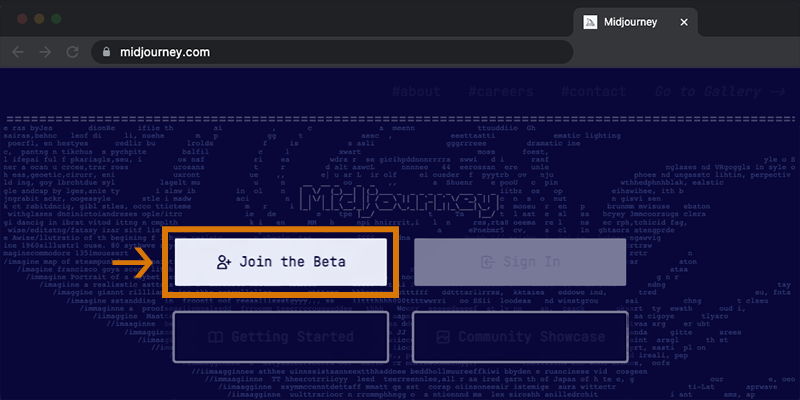
前往 Midjourney.com,选择 **Join the Beta**, 或直接前往[Midjourney Discord](https://discord.gg/midjourney)。
在加入 Midjourney Discord 服务器之前,您必须登录 Discord。\
[在此处了解如何创建](https://support.discord.com/hc/en-us/articles/360033931551-Getting-Started)。
### **2:** 找到*新手*频道
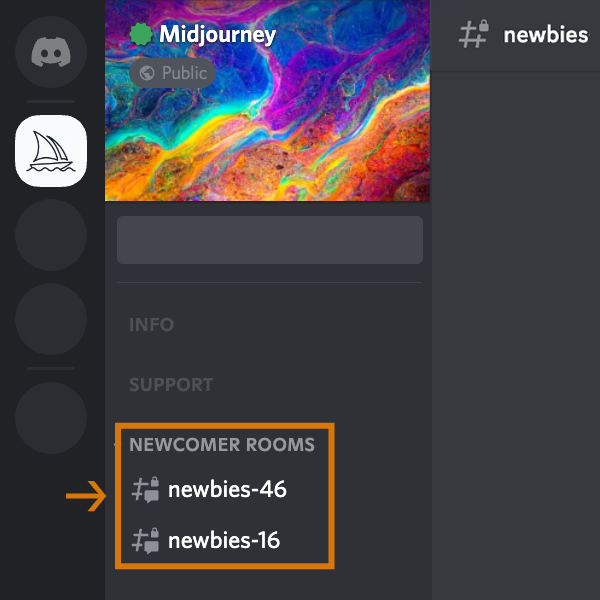
#### 在 Midjourney 官方服务器
左侧边栏中选择`newbies-#`可见的任何频道。
#### 在其他服务器上
您可以在任何已邀请 Bot 的服务器上使用 Midjourney Bot 生成图像。在您的服务器上查找有关在何处使用机器人的说明。
### **3:** 使用 /imagine 命令
#### 关于 Discord 命令
使用命令与 Discord 上的 Midjourney Bot 交互。命令用于创建图像、更改默认设置、监视用户信息以及执行其他有用的任务。该`/imagine`命令从简短的文本描述(称为Prompt)生成一个独特的图像。
#### 使用 /imagine
1. 从斜杠命令弹出窗口中键入`/imagine prompt:`或选择命令。`/imagine`
2. 在“提示”字段中输入您要创建的图像的描述。
3. 单击回车键以发送您的消息。
尊重[社区准则](https://docs.midjourney.com/community-guidelines)。社区准则适用于任何使用 Midjourney Bot 的地方。

如果您在键入命令时没有看到弹出窗口`/imagine`,请尝试退出,更新 Discord 应用程序,然后重新登录。
命令仅在机器人频道中有效。命令在#trial-support 等常规渠道中不起作用。
### **4:** 处理作业
#### Midjourney Bot 需要大约一分钟的时间来生成四个选项。
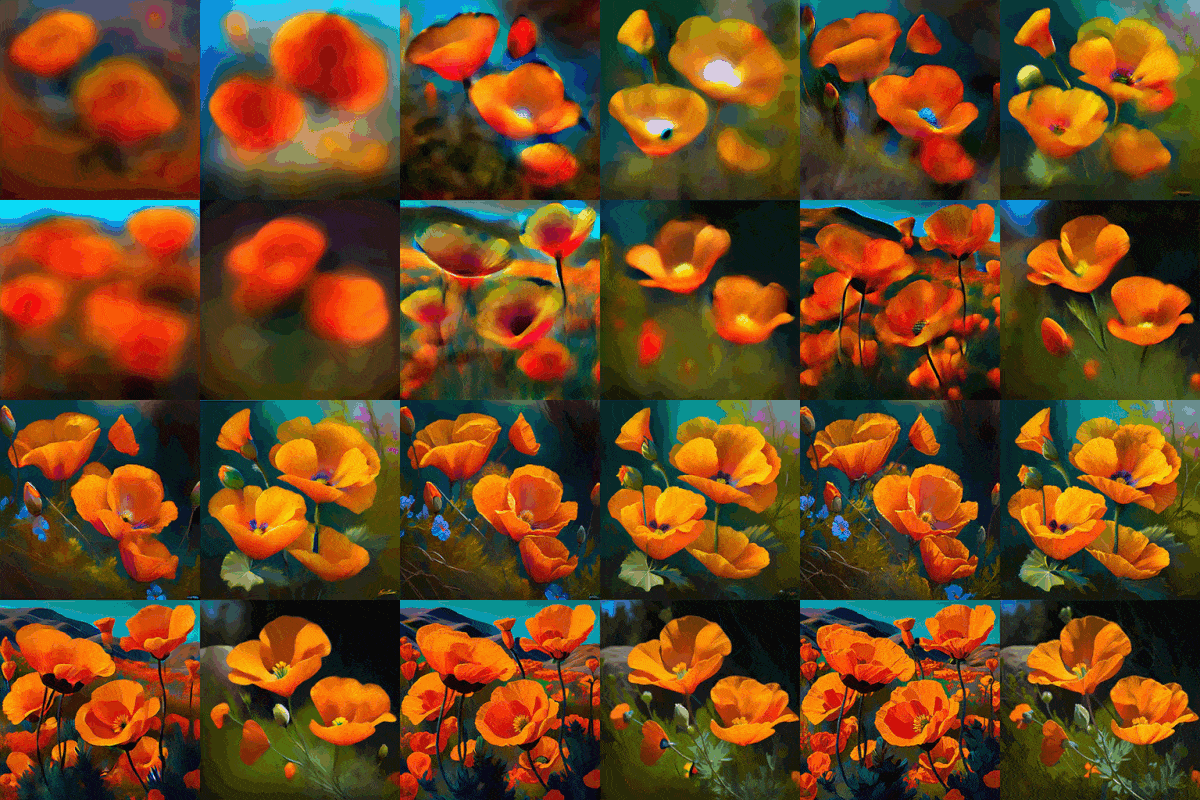
生成图像会激活免费的 Midjourney 试用版。试用版用户免费生成25个作品
作业是使用 Midjourney Bot 的任何操作。工作包括使用`/imagine`命令创建图像网格、放大图像或创建图像变体,全部使用您的免费试用时间。
使用`/info`命令检查你的快速剩余时间查看您的剩余试用时间。
### **5:** 高级或创意玩法
#### 初始图像网格生成完成后,会出现两行按钮:
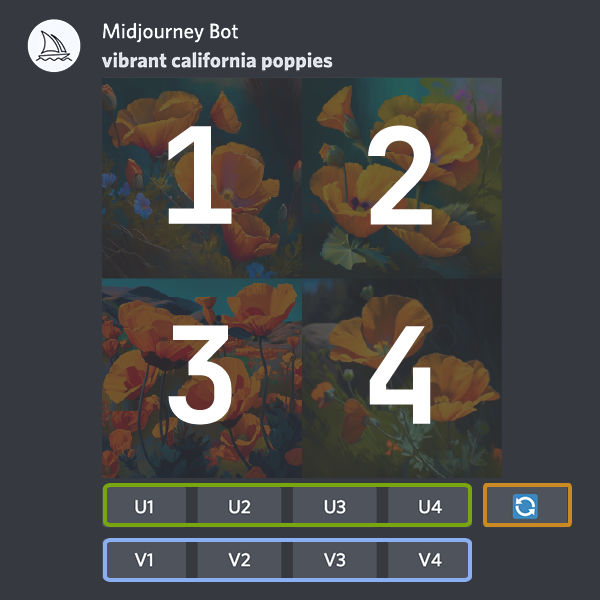
`U1` `U2` `U3` `U4`
U 按钮[放大](https://docs.midjourney.com/upscalers)图像,生成所选图像的更大版本并添加更多细节。
`V1` `V2` `V3` `V4`
V 按钮创建所选网格图像的细微变化。创建变体会生成与所选图像的整体风格和构图相似的新图像网格。
`🔄`
🔄按钮重新运行。在这种情况下,它将重新运行原始提示,生成新的图像网格。
### **6:** 评价图像
#### 使用放大图像后,将出现一组新选项:
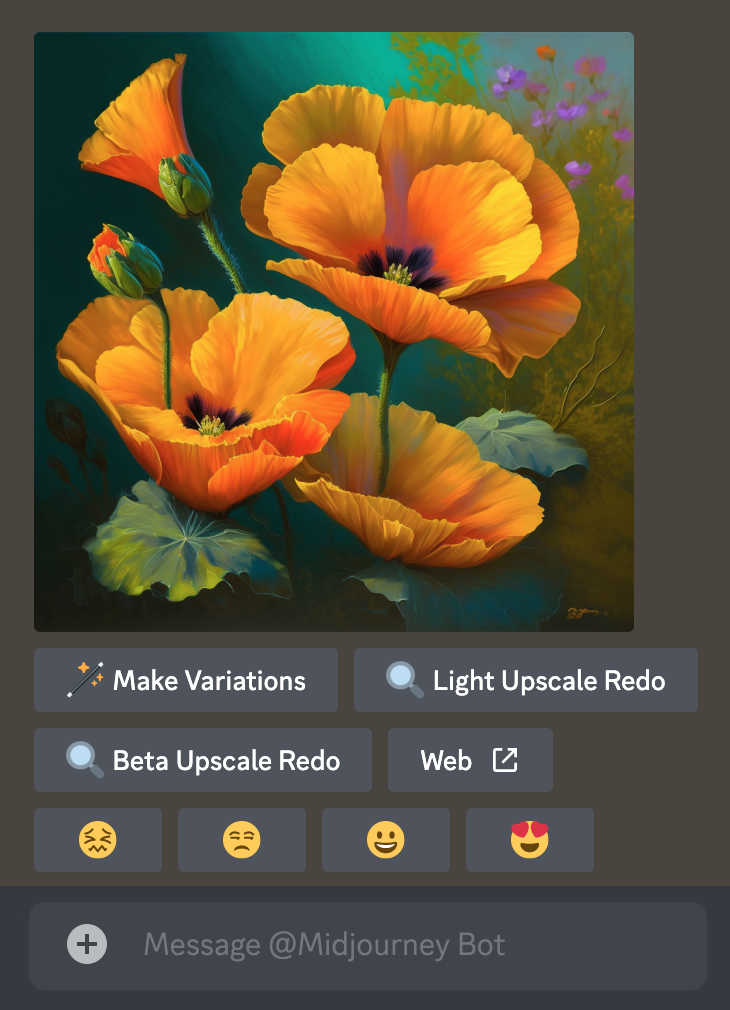
`🪄 Make Variations` `🔍 Light Upscale Redo` `🔍 Beta Upscale Redo` `↗️Web`
**Make Variations:** 创建放大图像的变体并生成包含四个选项的新网格.
**Beta/Light Upscale Redo:** 使用不同的升级器模型重做升级[。](https://docs.midjourney.com/upscalers)
**Web:** **在**[Midjourney.com](https://www.midjourney.com/home/) 上打开图库中的图像
`😖` `😒` `🙂` `😍`
[在Midjourney 网站](https://www.midjourney.com/app/ranking/)或 Discord上点击一个笑脸按钮来评价任何放大的图像。每天,[排名前 1000 位的图像评分者](https://docs.midjourney.com/free-hours)都会获得一个小时的免费快速模式时间。对您的工作或其他人的工作进行排名。根据您的个人风格和意见进行排名。喜欢外观、效果、颜色、概念或主题?请给它一个😍!
### **7:** 保存图片
单击图像以全尺寸打开它,然后右键单击并选择`Save image`。在手机上,长按图片,然后点击右上角的下载图标。
所有图片均可立即在[midjourney.com/app](https://www.midjourney.com/app/)\
`Sign In with Discord`上查看。
### **8:** 订阅计划
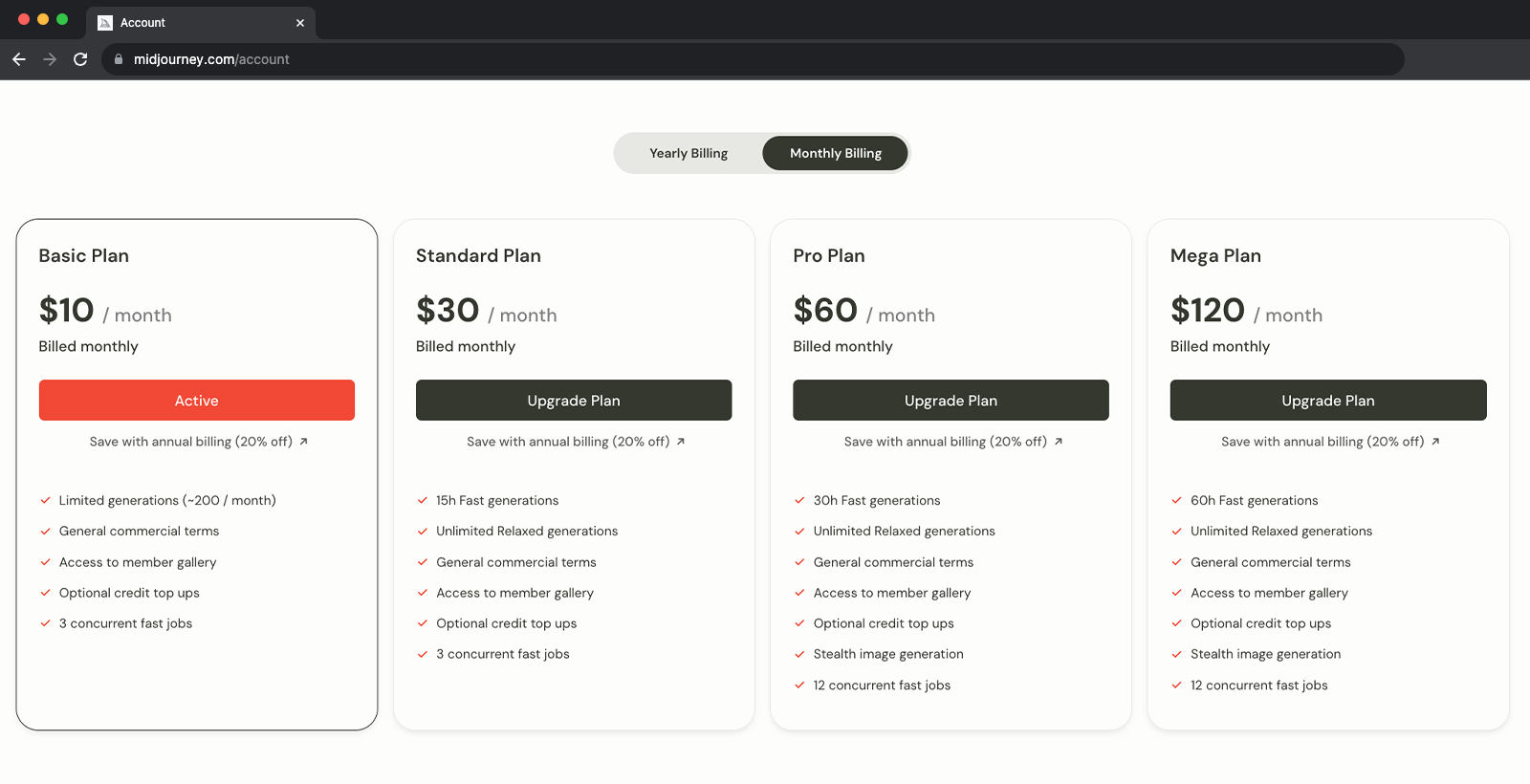
试用用户大约有 25 个免费工作。工作目前不会过期,但也不会更新。要制作更多图像,请使用`/subscribe`命令在任何机器人频道中指向midjourney帐户页面的个人链接。**不要与他人分享此个人链接。**
有关价格和更多信息,请访问[订阅计划](https://docs.midjourney.com/plans)
再检查一遍
确保您使用现有的 Discord 帐户登录。很容易不小心创建一个新帐户。
### 下一步
#### 在您的直接消息中工作
公共渠道动作太快?`/imagine`在与 Midjourney Bot 直接发送消息时使用该命令。在您的直接消息中制作的图像仍受内容和审核规则的约束,并且可以在 Midjourney 网站上看到。
#### 了解有关提示的更多信息
[学习写作提示的基础知识](https://docs.midjourney.com/prompts),或[探索艺术媒介、地点和时间段的描述如何改变图像](https://docs.midjourney.com/explore-prompting)
#### 了解如何组合自己的图片
[了解如何](https://docs.midjourney.com/v1/docs/blend)使用`/blend`命令上传和混合您自己的图像。
#### 获取答案
需要帮助或有疑问?试试这些命令:
`/help`显示有关 Midjourney Bot 的有用基本信息和提示。
`/ask`得到一个问题的答案。\

如需更多帮助,请访问Midjourney Discord 上的[#trial-Support频道。](https://discord.com/channels/662267976984297473/989981349777637446)