> For the complete documentation index, see [llms.txt](https://limi.gitbook.io/mj-doc/llms.txt). Markdown versions of documentation pages are available by appending `.md` to page URLs; this page is available as [Markdown](https://limi.gitbook.io/mj-doc/kuai-su-kai-shi.md).
# 快速开始
**了解如何使用 Discord 上的 Midjourney Bot 根据简单的文本提示创建自定义图像。**
行为守则
别做混蛋\
请勿使用我们的工具制作可能会激怒、扰乱或引起戏剧性的图像。这包括血腥和成人内容。
尊重他人和团队。
***
### **1:** 加入Discord
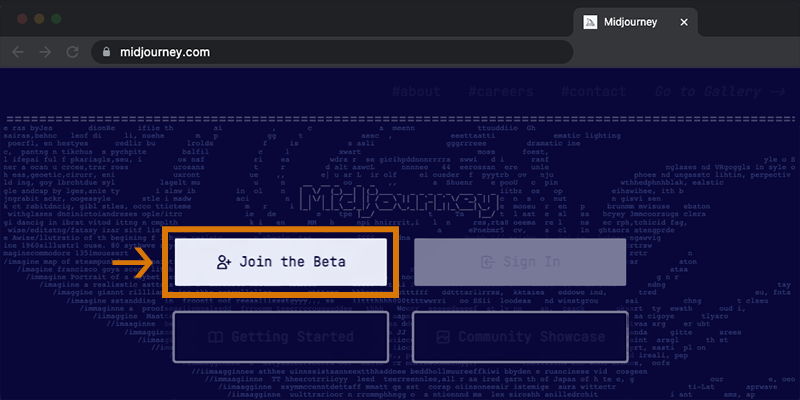
前往 Midjourney.com,选择 **Join the Beta**, 或直接前往[Midjourney Discord](https://discord.gg/midjourney)。
在加入 Midjourney Discord 服务器之前,您必须登录 Discord。\
[在此处了解如何创建](https://support.discord.com/hc/en-us/articles/360033931551-Getting-Started)。
### **2:** 找到*新手*频道
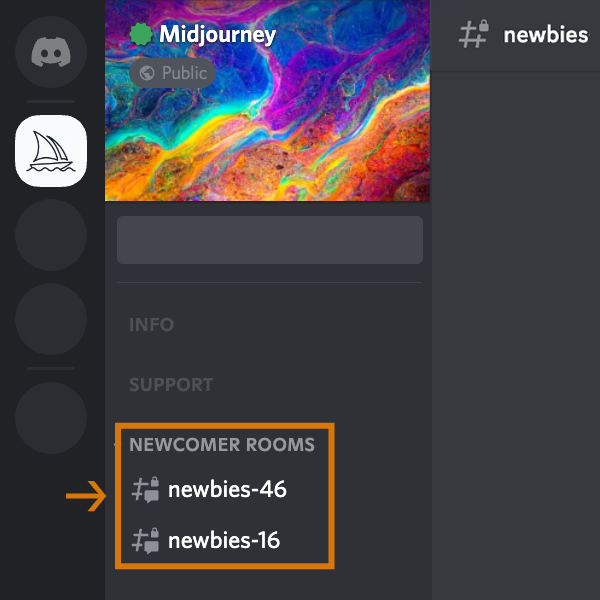
#### 在 Midjourney 官方服务器
左侧边栏中选择`newbies-#`可见的任何频道。
#### 在其他服务器上
您可以在任何已邀请 Bot 的服务器上使用 Midjourney Bot 生成图像。在您的服务器上查找有关在何处使用机器人的说明。
### **3:** 使用 /imagine 命令
#### 关于 Discord 命令
使用命令与 Discord 上的 Midjourney Bot 交互。命令用于创建图像、更改默认设置、监视用户信息以及执行其他有用的任务。该`/imagine`命令从简短的文本描述(称为Prompt)生成一个独特的图像。
#### 使用 /imagine
1. 从斜杠命令弹出窗口中键入`/imagine prompt:`或选择命令。`/imagine`
2. 在“提示”字段中输入您要创建的图像的描述。
3. 单击回车键以发送您的消息。
尊重[社区准则](https://docs.midjourney.com/community-guidelines)。社区准则适用于任何使用 Midjourney Bot 的地方。

如果您在键入命令时没有看到弹出窗口`/imagine`,请尝试退出,更新 Discord 应用程序,然后重新登录。
命令仅在机器人频道中有效。命令在#trial-support 等常规渠道中不起作用。
### **4:** 处理作业
#### Midjourney Bot 需要大约一分钟的时间来生成四个选项。
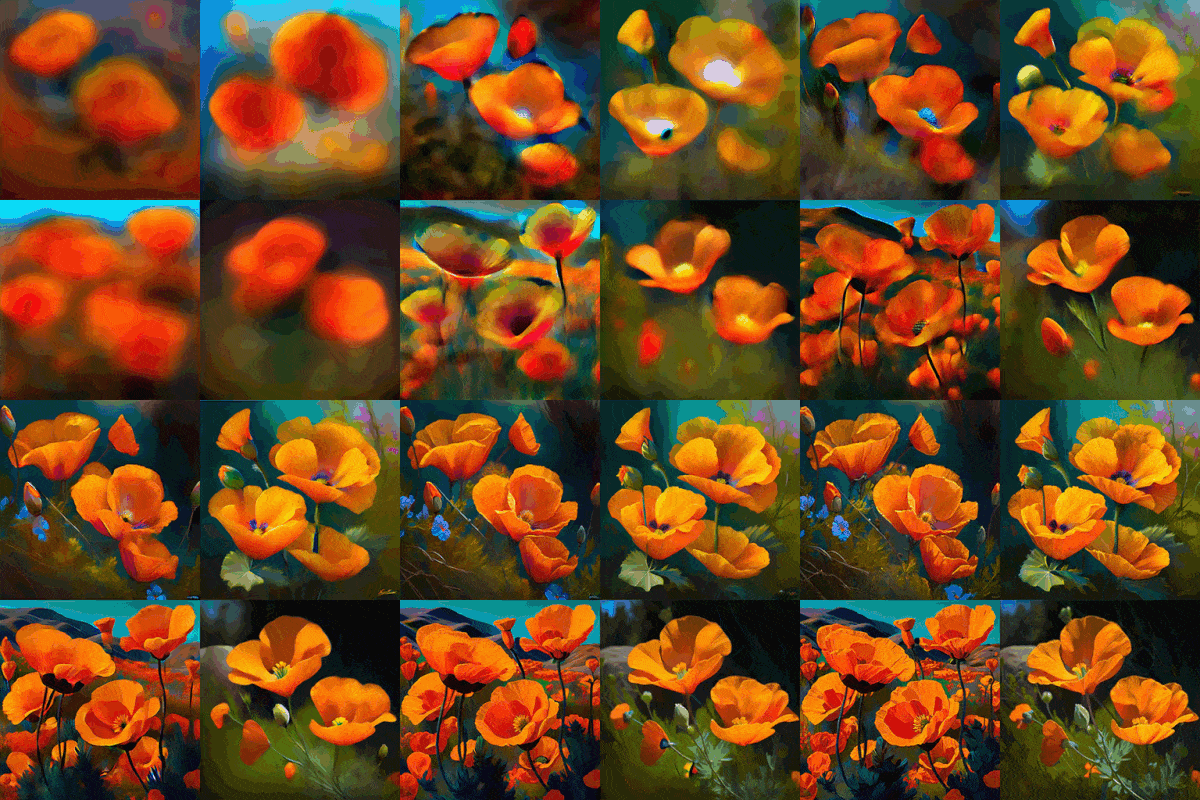
生成图像会激活免费的 Midjourney 试用版。试用版用户免费生成25个作品
作业是使用 Midjourney Bot 的任何操作。工作包括使用`/imagine`命令创建图像网格、放大图像或创建图像变体,全部使用您的免费试用时间。
使用`/info`命令检查你的快速剩余时间查看您的剩余试用时间。
### **5:** 高级或创意玩法
#### 初始图像网格生成完成后,会出现两行按钮:
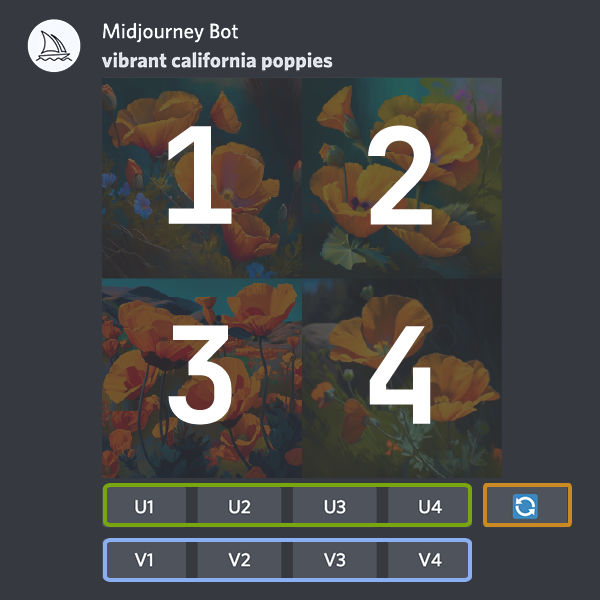
`U1` `U2` `U3` `U4`
U 按钮[放大](https://docs.midjourney.com/upscalers)图像,生成所选图像的更大版本并添加更多细节。
`V1` `V2` `V3` `V4`
V 按钮创建所选网格图像的细微变化。创建变体会生成与所选图像的整体风格和构图相似的新图像网格。
`🔄`
🔄按钮重新运行。在这种情况下,它将重新运行原始提示,生成新的图像网格。
### **6:** 评价图像
#### 使用放大图像后,将出现一组新选项:
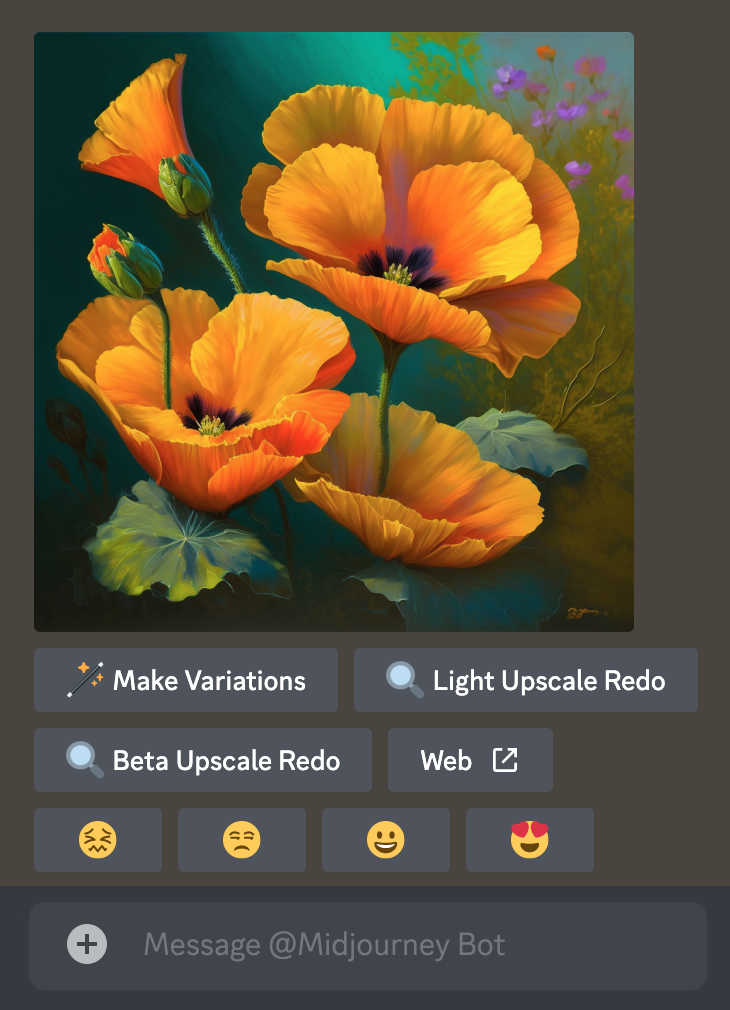
`🪄 Make Variations` `🔍 Light Upscale Redo` `🔍 Beta Upscale Redo` `↗️Web`
**Make Variations:** 创建放大图像的变体并生成包含四个选项的新网格.
**Beta/Light Upscale Redo:** 使用不同的升级器模型重做升级[。](https://docs.midjourney.com/upscalers)
**Web:** **在**[Midjourney.com](https://www.midjourney.com/home/) 上打开图库中的图像
`😖` `😒` `🙂` `😍`
[在Midjourney 网站](https://www.midjourney.com/app/ranking/)或 Discord上点击一个笑脸按钮来评价任何放大的图像。每天,[排名前 1000 位的图像评分者](https://docs.midjourney.com/free-hours)都会获得一个小时的免费快速模式时间。对您的工作或其他人的工作进行排名。根据您的个人风格和意见进行排名。喜欢外观、效果、颜色、概念或主题?请给它一个😍!
### **7:** 保存图片
单击图像以全尺寸打开它,然后右键单击并选择`Save image`。在手机上,长按图片,然后点击右上角的下载图标。
所有图片均可立即在[midjourney.com/app](https://www.midjourney.com/app/)\
`Sign In with Discord`上查看。
### **8:** 订阅计划
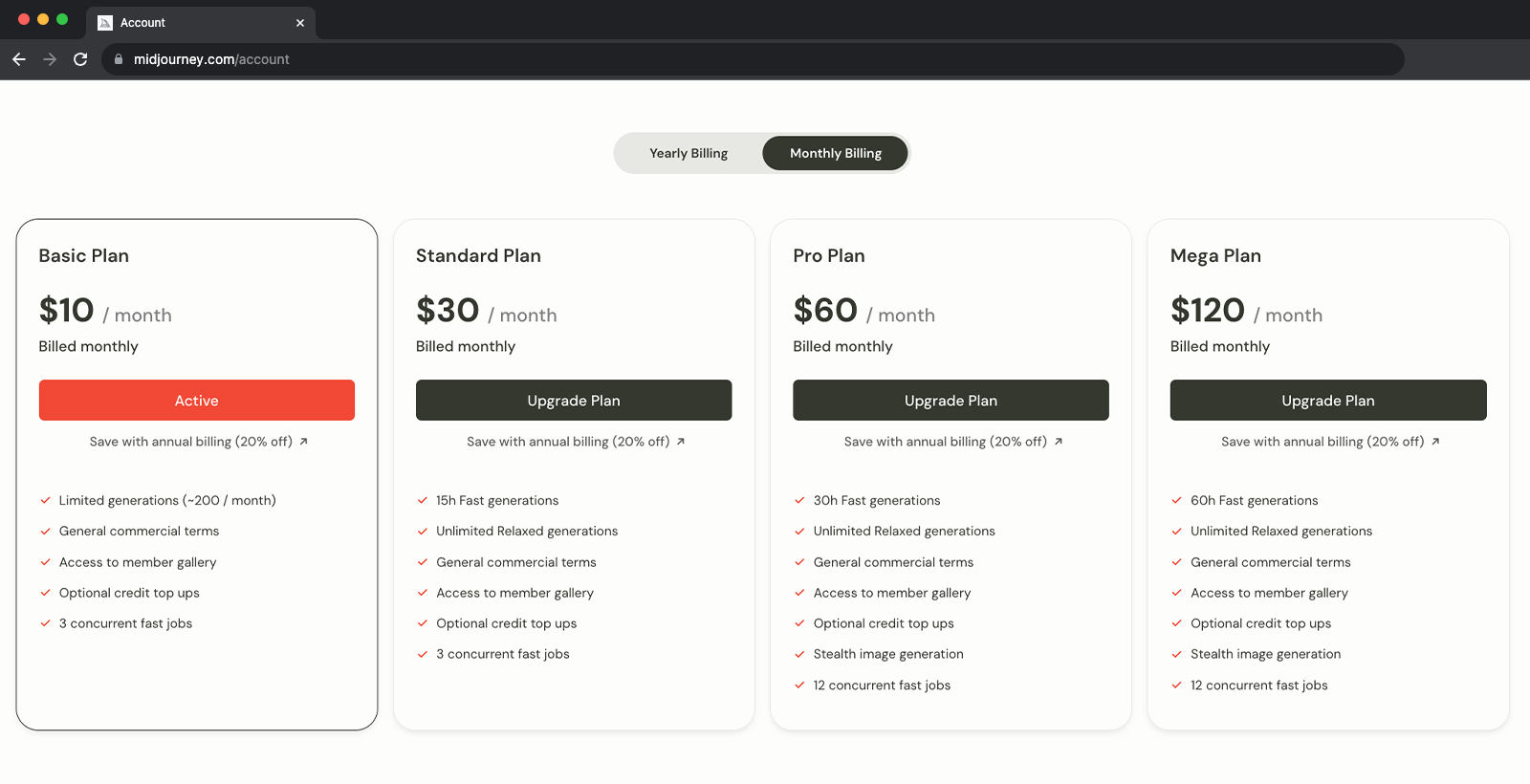
试用用户大约有 25 个免费工作。工作目前不会过期,但也不会更新。要制作更多图像,请使用`/subscribe`命令在任何机器人频道中指向midjourney帐户页面的个人链接。**不要与他人分享此个人链接。**
有关价格和更多信息,请访问[订阅计划](https://docs.midjourney.com/plans)
再检查一遍
确保您使用现有的 Discord 帐户登录。很容易不小心创建一个新帐户。
### 下一步
#### 在您的直接消息中工作
公共渠道动作太快?`/imagine`在与 Midjourney Bot 直接发送消息时使用该命令。在您的直接消息中制作的图像仍受内容和审核规则的约束,并且可以在 Midjourney 网站上看到。
#### 了解有关提示的更多信息
[学习写作提示的基础知识](https://docs.midjourney.com/prompts),或[探索艺术媒介、地点和时间段的描述如何改变图像](https://docs.midjourney.com/explore-prompting)
#### 了解如何组合自己的图片
[了解如何](https://docs.midjourney.com/v1/docs/blend)使用`/blend`命令上传和混合您自己的图像。
#### 获取答案
需要帮助或有疑问?试试这些命令:
`/help`显示有关 Midjourney Bot 的有用基本信息和提示。
`/ask`得到一个问题的答案。\

如需更多帮助,请访问Midjourney Discord 上的[#trial-Support频道。](https://discord.com/channels/662267976984297473/989981349777637446)
---
# Agent Instructions
This documentation is published with GitBook. GitBook is the documentation platform designed so that both humans and AI agents can read, navigate, and reason over technical content effectively. Learn more at gitbook.com.
## Querying This Documentation
If you need additional information that is not directly available in this page, you can query the documentation dynamically by asking a question.
Perform an HTTP GET request on the current page URL with the `ask` query parameter, and the optional `goal` query parameter:
```
GET https://limi.gitbook.io/mj-doc/kuai-su-kai-shi.md?ask=&goal=
```
`ask` is the immediate question: it should be specific, self-contained, and written in natural language.
`goal` is optional and describes the broader end goal you are ultimately trying to accomplish on behalf of the user. GitBook uses it to tailor the answer towards what is most useful for that goal.
The response will contain a direct answer to the question and relevant excerpts and sources from the documentation.
Use this mechanism when the answer is not explicitly present in the current page, you need clarification or additional context, or you want to retrieve related documentation sections.